The Event System — Triggers, Conditions & Actions
Events are the engine of EscapeMaker. Every interaction — clicking an object, solving a puzzle, picking up an item, entering a scene — is driven by events you define. Understanding the full breadth of what triggers, conditions, and actions are available unlocks everything from simple "click this to do that" moments to elaborate multi-step puzzle chains and narrative sequences.
What You'll Learn
- Every trigger type and when to use each
- Stacking conditions with AND logic
- Building ordered action sequences
- Where object, scene, and global events live
- How scene entry events work
- Timer events and state change events
- A complete real-world event example
- Tips for naming and organizing events
How Events Work
Every event in EscapeMaker has exactly three parts:
- Trigger — What starts the event. Something that happens in the game: a click, a puzzle being solved, a scene being entered, a timer going off.
- Conditions — Optional checks that must all pass before the actions run. If any condition fails, the actions are skipped entirely. Conditions let you gate behavior — "only do this if the player has the key."
- Actions — What actually happens: showing an object, adding an item to inventory, navigating to a scene, playing a sound, showing dialogue. Actions run in order, top to bottom.
You can attach unlimited events to any object, any scene, or globally. Multiple events on the same trigger fire independently — if three events have the "Object Click — safe" trigger, all three fire when the player clicks the safe.
Where Events Live
EscapeMaker has three scopes for events, each suited to different use cases:
Object Events
Select an object on the canvas, then open the Event tab in the right panel. Events added here belong to this specific object. By default the Trigger field pre-fills with "Object Click → [this object]" as a convenience, but you can change the trigger to anything.
Object events are the most common type. Use them for everything that's logically tied to a specific interactive object.
Scene Events
Click an empty area of the canvas to deselect all objects, then open the Event tab. Events added here are scene-level events — they are associated with the scene itself, not any object. Use these for scene entry triggers, timers, and any logic that should run at the scene level.
Global Events
In the toolbar, click File → Global Events. Global events fire from anywhere in the game, regardless of which scene the player is in. Use these for game-wide conditions: picking up a specific collectible, combining two items, detecting when the player has reached a certain score.
| Scope | Where to Find It | Best For |
|---|---|---|
| Object | Select object → Event tab | Clicks, item use on a specific object |
| Scene | Deselect all → Event tab | Scene entered, timers, scene-level state |
| Global | File → Global Events | Inventory changes, collectibles, game-wide state |
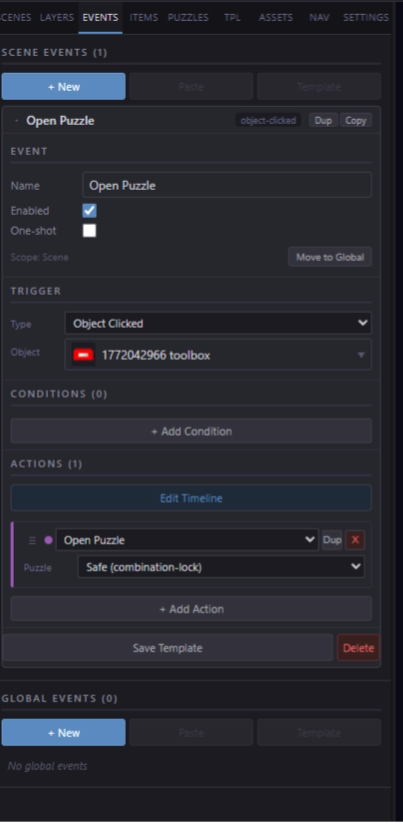
The Event Panel for a selected object — Trigger at top, Conditions, then Actions.
Every Trigger Type
When you add an event, the first thing you choose is its trigger. Here is every trigger type available:
| Trigger | Description |
|---|---|
| Object Click | Fires when the player clicks (or taps) a specific interactive object. The most commonly used trigger. |
| Object Use Item | Fires when the player holds an inventory item and clicks a specific object. You choose which item must be held. Used to build "use key on door" interactions. |
| Puzzle Solved | Fires when the player successfully completes a named puzzle. Choose which puzzle from a dropdown. |
| Item Collected | Fires when the player clicks and collects a collectible (coin or gem) with a specific ID. Useful for counters and unlock checks. |
| Item Added to Inventory | Fires when a named inventory item is added to the player's inventory, regardless of how (picked up, given via action, etc.). |
| Item Removed from Inventory | Fires when a named inventory item leaves inventory — used, combined, or removed by action. |
| Items Combined | Fires when the player successfully combines two specific items in the inventory bar. Choose both Item A and Item B. |
| Scene Entered | Fires each time the player navigates to this scene. Attach it as a scene-level event. Good for intro dialogue or ambient sound triggers. |
| Scene Loaded (this scene) | Like Scene Entered, but with no scene to pick — it fires whenever the event's own scene loads. Because there's nothing to bind, you can copy/paste the event (or the whole object) into any other scene and it just runs there. Perfect for "always run on this scene", like a looping pulse or glow on an object. |
| Timer Reached | Fires when a countdown timer (started by a "Start Timer" action) reaches zero. Used for timed puzzles and countdowns. |
| State Changed | Fires whenever a named state variable changes its value. Useful for reactive systems — e.g. when "power" changes, update the lights. |
| Game Started | Fires once when the player first starts the game (not on reload or continue). Ideal for playing an opening cutscene or narration. |
Every Condition Type
Conditions are optional guards. When a trigger fires, EscapeMaker evaluates all conditions in the event. If every condition passes, the actions run. If any condition fails, the entire event's actions are skipped.
| Condition | Description |
|---|---|
| Has Item | Checks whether the player currently has (or does not have) a specific inventory item. Toggle the "not" checkbox to invert. |
| Puzzle Solved | Checks whether a specific puzzle has been solved (or has not been solved yet). Great for gating navigation — "only open door if safe is solved." |
| Object Visible | Checks whether a named object is currently visible or hidden on the scene. |
| State Equals | Checks whether a named state variable equals an exact value. Works with string or numeric state variables. |
| State Greater Than | Checks whether a numeric state variable is greater than a specified number. Useful for score thresholds, collectible counts, and attempt trackers. |
| Collectible Count | Checks whether the player has collected at least N coins/gems. Good for unlock gates that require finding all hidden collectibles. |
Every Action Type
Actions are what actually change the game state. They are grouped below by category.
Show / Hide
| Action | What It Does |
|---|---|
| Show Object | Makes a hidden object visible on the current scene. |
| Hide Object | Makes a visible object invisible (it still exists; players just can't see or click it). |
| Toggle Object Visibility | Flips visible/hidden state. Useful for on/off lights, open/closed states. |
Object Groups
Select several objects and click + New Group from N Objects in the properties panel to bundle them under a name. Then one action can control the whole bundle at once — handy for revealing a set of clues together or locking a row of hotspots.
| Action | What It Does |
|---|---|
| Show Group | Makes every object in the named group visible. |
| Hide Group | Hides every object in the named group. |
| Set Group Interactive | Turns clicking on or off for every object in the group at once. |
Navigation
| Action | What It Does |
|---|---|
| Navigate to Scene | Takes the player to a named scene. Choose from all scenes in the game. |
| Open Puzzle | Opens a named puzzle overlay on top of the current scene. |
| Close Puzzle | Dismisses the current open puzzle overlay without solving it. |
Inventory
| Action | What It Does |
|---|---|
| Add Item to Inventory | Gives a named inventory item to the player. The item appears in the bottom inventory bar. |
| Remove Item from Inventory | Takes a named item out of the player's inventory. Use after an item is "consumed." |
State
| Action | What It Does |
|---|---|
| Set State Variable | Sets a named state variable to a specific value (string or number). Creates the variable if it doesn't exist. |
| Increment State Variable | Adds a number to a numeric state variable. Shortcut for "count += 1" patterns. |
Sound
| Action | What It Does |
|---|---|
| Play Sound | Plays a one-shot sound effect from the asset library. |
| Stop Sound | Stops a currently playing sound. |
| Play Music | Starts a looping music track. Fades out the previous track if one is playing. |
| Stop Music | Fades out and stops the current music track. |
Dialogue
| Action | What It Does |
|---|---|
| Show Dialogue | Displays a dialogue box with optional speaker name, portrait image, and text. The player must click to dismiss. Game is paused while dialogue is showing. |
Visual
| Action | What It Does |
|---|---|
| Move Object | Animates an object to a target X/Y position over a duration (in ms). |
| Set Object Opacity | Changes an object's transparency (0 = invisible, 1 = fully opaque). |
| Set Object Scale | Changes an object's size by a scale multiplier (1.0 = normal, 2.0 = double). |
| Play Effect | Plays a quick animation on an object to flourish it or draw attention: shake, bounce, pulse, wobble, flash, spin, float, jello, fade-in, fade-out, plus elevate (lift up, hold, lower back) and shine (a light glare that sweeps across the object, clipped to its shape). Set Duration, Intensity, and optionally Repeat with a Repeat Delay to make it recur on a rhythm. |
| Play Particles | Emits a particle effect from an object: sparkle, glint (a brighter attention twinkle), fireflies, rain, snow, smoke, fire, candle, leaves, bubbles, dust, confetti, fog, clouds. Customize Color, Size, Intensity (amount), Spread (how wide the field spawns), and Speed. |
Game
| Action | What It Does |
|---|---|
| Win Game | Triggers the game's win/completion screen. Typically fired at the very end of your game. |
| Show Message | Displays a brief popup message (simpler than Dialogue — no portrait, no speaker). Good for status feedback. |
| Wait | Pauses action execution for a specified number of milliseconds. Use between actions to time reveals and sequences. |
Action Sequences
Actions in a single event execute in order, from top to bottom, synchronously — unless a Wait action or a dialogue box pause interrupts the flow.
Reordering Actions
In the Event editor, drag any action row by its handle to reorder it. The order matters: "Play Sound" before "Wait 300ms" before "Show Object" produces a different experience than all three running simultaneously.
Blocking vs. Non-Blocking Actions
- Non-blocking: Most actions (Show Object, Play Sound, Set State, etc.) execute immediately and the next action starts right away.
- Blocking: Show Dialogue pauses action execution until the player clicks to dismiss. The player also cannot click anything else while dialogue is open.
- Wait: Pauses the sequence for N milliseconds, then continues. Non-blocking from the player's perspective — they can still interact with the game during a Wait, but the action queue is paused.
Example Sequence
This sequence plays when a player solves a puzzle and should feel cinematic:
The sound plays instantly, then 400ms later the key appears (giving the sound a moment to register), then the dialogue box appears after the reveal.
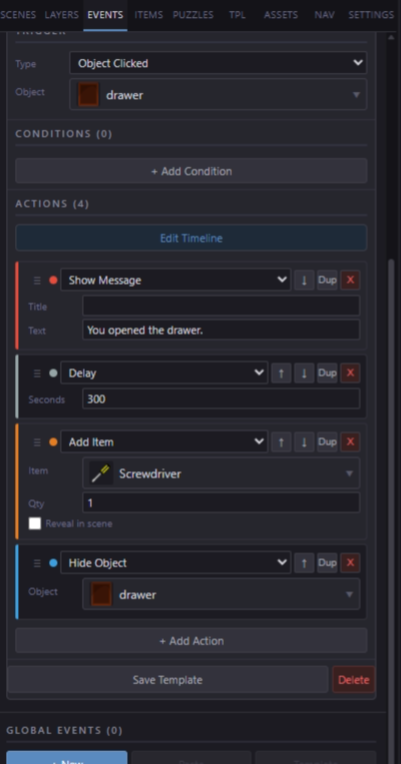
Four actions in sequence — the Wait creates a timed delay between steps.
A Real Example — The Hidden Key
Let's walk through a complete two-event sequence: opening a drawer to find a key, then using that key to unlock a door.
Setup
- A sprite named
draweron the scene (closed drawer image). Interactive ON. - A sprite named
drawer_openon the same scene (open drawer image). Visibility: Hidden. - An inventory item defined: Name "Brass Key", ID
brass_key. - A sprite named
dooron the scene. Interactive ON. - A scene named "Hallway" to navigate to.
Event 1 — Open the Drawer
| Field | Value |
|---|---|
| Name | OpenDrawer |
| Trigger | Object Click → drawer |
| Conditions | none |
| Actions | Show Dialogue "You open the drawer and find a brass key!" → Add Item to Inventory "brass_key" → Hide Object drawer → Show Object drawer_open |
Event 2 — Unlock the Door
| Field | Value |
|---|---|
| Name | UnlockDoor |
| Trigger | Object Use Item → door with item "brass_key" |
| Conditions | Has Item "brass_key" = true |
| Actions | Remove Item from Inventory "brass_key" → Show Dialogue "The door swings open." → Navigate to Scene "Hallway" |
The player clicks the drawer — the dialogue shows, the key appears in inventory, and the drawer sprite swaps to the open version. Later, the player opens the inventory bar, clicks the key to hold it, then clicks the door — the door unlocks, the key is consumed, and they move to the Hallway.
Scene Entry Events
Scene entry events let you run logic the moment a player enters a scene. They use the Scene Entered trigger and must be added as scene-level events (click empty canvas to deselect objects first, then open the Event tab).
Common Uses
- Play ambient background sound when the player enters a room.
- Show an intro monologue the first time the player visits a scene.
- Trigger a cutscene animation on first entry.
- Start a countdown timer.
Firing Only Once
By default, a Scene Entered event fires every time the player enters the scene — including when they return from a close-up or navigate back. To fire only on the first visit, use a state variable:
- Add condition: State Equals — variable
intro_playedequalsfalse(or leave blank, which also evaluates as falsy). - As the first action in the event, add: Set State Variable —
intro_played=true. - Add your remaining actions (show dialogue, play sound, etc.).
On the second visit, the condition "intro_played equals false" fails, so the actions are skipped. The player never sees the intro again.
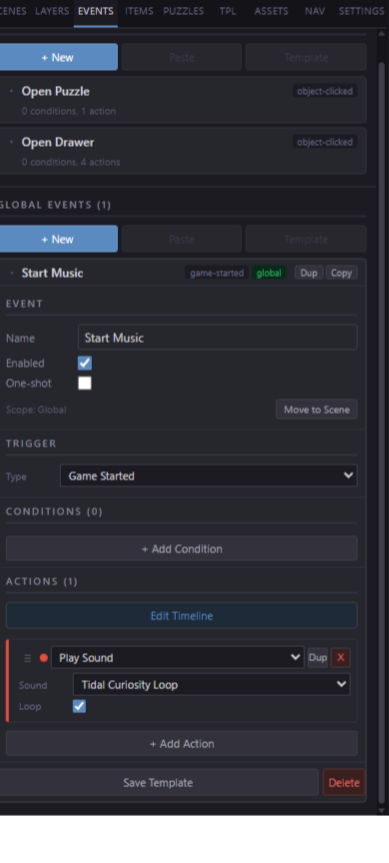
Global Events are accessible from the File menu and fire from anywhere in the game.