Sound — Music, Ambient & Effects
- Understand the three sound categories in EscapeMaker
- Set ambient sound per scene
- Add and change background music
- Trigger sound effects from events
- Stop sounds and music at the right moments
- Understand sound priorities and overlap behavior
Sound Types in EscapeMaker
EscapeMaker organizes audio into three distinct categories, each with its own behavior:
- Background Music — A single looping track that plays globally across the entire game. Only one music track plays at a time. It continues across scene changes until you stop or replace it.
- Ambient Sound — A per-scene looping audio layer (wind howling, fire crackling, rain on glass). It fades in automatically when the player enters the scene and fades out when they leave.
- Sound Effects (SFX) — Short one-shot clips triggered by events. They play once and stop (clicking a button, solving a puzzle, picking up an item).
Setting Scene Ambient Sound
To assign an ambient sound to a scene:
- Click on the scene in the Room Panel (make sure no object is selected — you want scene-level properties)
- In the Property Panel, find the "Ambient Sound" field
- Select an audio asset from the dropdown
The sound will loop continuously while the player is in this scene. When the player navigates to a different scene, the sound fades out smoothly. Set the field to null / None for a completely silent scene.
Triggering Sound Effects from Events
In any event's action list, add the action "Play Sound" and choose an audio asset. The sound plays once (non-looping) at the moment the event fires.
Common uses for sound effects:
- Object interaction feedback (clicking a button or lever)
- Puzzle solved jingle
- Item pickup chime
- Wrong-answer buzz
- Door creak when a lock opens
You can chain multiple "Play Sound" actions in the same event to layer sounds simultaneously (e.g. a mechanical click + a success chime together).
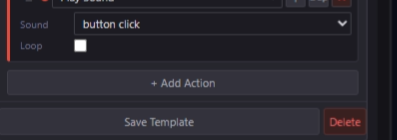
The Play Sound action — triggers a one-shot sound effect from any event.
Background Music
In any event, add the action "Play Music" and choose an audio asset. Music loops until replaced by another "Play Music" action or stopped with "Stop Music."
Best practice: trigger "Play Music" on a Game Started event to establish the atmosphere from the very first moment.
- Open Global Events (the event panel in no-scene context, or via the toolbar)
- Add a new event with trigger Game Started
- Action: Play Music → choose your main theme track
To switch the music mid-game — for example when the player reaches the final room — add a "Play Music" action to a scene entry event. The new track replaces the old one with a brief crossfade.
Stopping Sounds
Two dedicated stop actions give you full control:
- "Stop Sound" — Stops a specific sound effect if it is still playing. This is useful for looping SFX (an alarm that should stop when disabled) or a long ambient click sound you want to cut short.
- "Stop Music" — Stops the background music track. The fade-out is brief by default.
Useful scenarios for stopping audio:
- Complete silence right before a dramatic reveal
- Swapping to a different music track for a cutscene
- An in-game event that "destroys" the music source (player unplugs the radio)
Sound Priorities
Ambient sound and background music can play simultaneously — there is no automatic ducking. If you want only one audio layer at a time, you need to manage it explicitly:
- Before starting a new music track, add a "Stop Music" action first
- If your ambient and music layers conflict sonically, consider making one very quiet or eliminating one for specific scenes
- Multiple SFX can overlap freely — this is usually desirable (pick up sound + unlock sound at the same time)
Uploading Sound Assets
Go to the Asset Panel → Upload Sound. Supported formats: MP3, OGG, WAV. The editor auto-compresses on upload.
- Keep SFX clips short — under 3 seconds where possible
- Use MP3 for music and ambient loops for maximum browser compatibility
- OGG is an acceptable alternative with slightly better compression, but not supported on all older browsers
- WAV files are lossless — they will be compressed on upload